Typst: A Modern, Faster Alternative to LaTeX
Discover how Typst revolutionizes document typesetting with cleaner syntax and blazing fast compilation
Introduction: Why Typst Matters
For over four decades, LaTeX has been the gold standard for academic and technical document preparation. Its precise typesetting, excellent mathematics support, and bibliography management made it indispensable for researchers worldwide. However, LaTeX comes with significant drawbacks: a steep learning curve, cryptic error messages, slow compilation times, and syntax that dates back to the 1980s.
Enter Typst, a modern typesetting system designed for the 21st century. Typst addresses LaTeX’s pain points while maintaining the professional output quality researchers expect. Built with modern software engineering practices, Typst offers:
- Blazing fast compilation: Incremental compilation in milliseconds, not seconds
- Clean, intuitive syntax: Easier to learn and write than LaTeX
- Helpful error messages: Clear guidance when something goes wrong
- Built-in tooling: Integrated scripting without needing external languages
- Modern package management: Easy dependency management similar to Cargo or npm
Typst isn’t just “LaTeX with nicer syntax” — it’s a complete reimagining of how document preparation systems should work in the modern era.
Try It Now
You can try Typst in the browser at typst.app/app. The online editor is feature-comparable to Overleaf, offering real-time collaboration, syntax highlighting, and instant preview — but with compilation times measured in milliseconds instead of seconds.
Basic Syntax: Cleaner and More Intuitive
Let’s start with a practical comparison. Here’s how you’d create a basic document structure in both systems:
LaTeX (Traditional)
\documentclass{article}
\usepackage{amsmath}

\title{My Research Paper}
\author{John Doe}
\date{\today}

\begin{document}
\maketitle

\section{Introduction}
This is a paragraph with \textbf{bold text} and
\textit{italic text}.

The equation for Euler's identity is:
\begin{equation}
e^{i\pi} + 1 = 0
\end{equation}

\end{document}
Typst (Modern)
#import "@preview/template:0.1.0": article

#show: article.with(
  title: "My Research Paper",
  author: "John Doe",
  date: datetime.today(),
)

= Introduction

This is a paragraph with *bold text* and _italic text_.

The equation for Euler's identity is:
$ e^(i pi) + 1 = 0 $
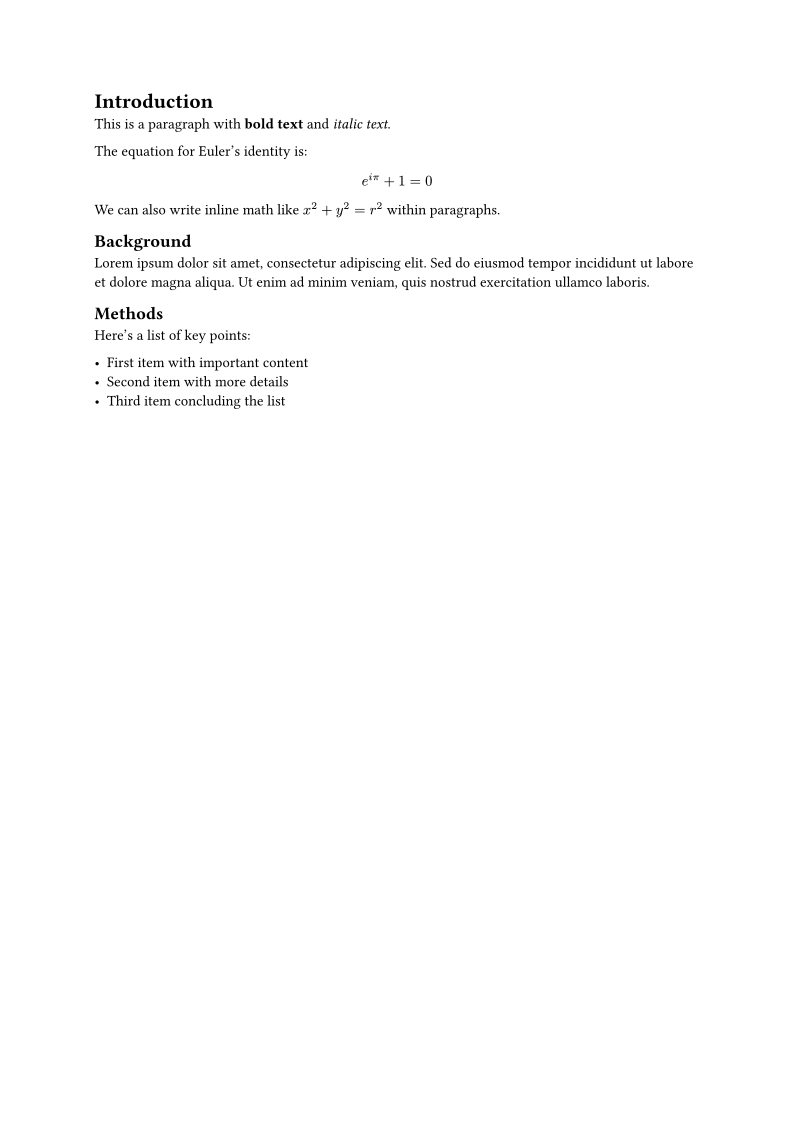
Notice the differences:
- Function calls: Typst uses
#function()syntax, familiar from programming - Headers:
=,==,===for sections, much more intuitive than\section{} - Formatting:
*bold*and_italic_use markdown-like syntax - Math:
$ ... $for inline math with more intuitive operators (no backslashes everywhere) - No begin/end blocks: Cleaner structure without verbose delimiters
Math Expressions Comparison
LaTeX requires extensive backslash usage:
\frac{\partial f}{\partial x} = \int_{0}^{\infty} g(x) \, dx
Typst makes this cleaner while staying mathematically equivalent:
$ (partial f) / (partial x) = integral_0^infinity g(x) dif x $
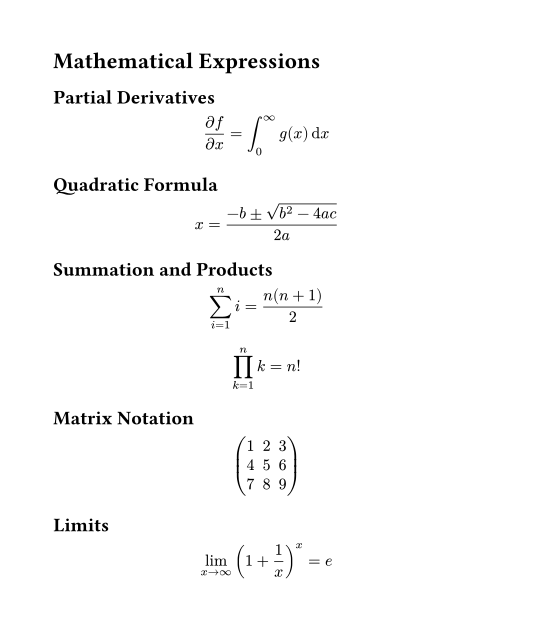
Key improvements:
- No backslashes for Greek letters (
pivs\pi) - Natural fraction syntax with
/ - Cleaner integral limits with subscripts/superscripts
diffunction for differential notation
Bibliography Management
LaTeX requires external tools and multiple steps:
\documentclass{article}
\usepackage[backend=biber]{biblatex}
\addbibresource{references.bib}

\begin{document}
See \autocite{smith2023} for details.

\printbibliography
\end{document}
Compile with: pdflatex, biber, pdflatex, pdflatex.
Typst handles this internally:
#bibliography("references.bib", style: "apa")

See @smith2023 for details.
Single compilation, citation integration built-in.
Styling Rules: Powerful and Consistent
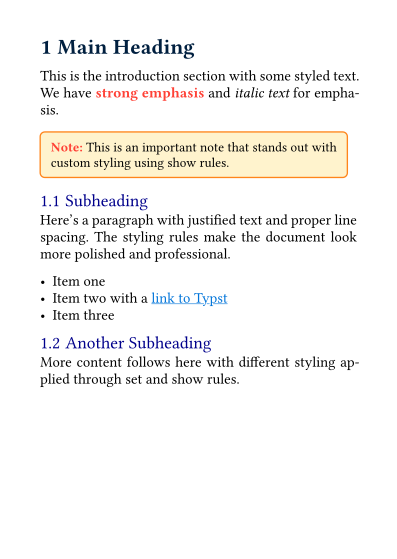
Typst’s styling system uses set rules and show rules. These provide fine-grained control over document appearance while keeping content separate from presentation.
Set Rules: Global Styling
Set rules define defaults for elements throughout your document:
#set text(font: "Libertinus Serif", size: 11pt)
#set par(justify: true, leading: 0.5em)
#set page(numbering: "1", paper: "a4")
#set heading(numbering: "1.1")
#set figure(placement: top, caption-position: bottom)

= Introduction

This paragraph uses Libertinus Serif font with justified alignment.
Show Rules: Conditional Formatting
Show rules transform content based on patterns:
#show link: underline
#show strong: text.with(fill: navy)
#show heading.where(level: 1): it => {
  set text(fill: navy)
  set block(above: 2em, below: 1em)
  it
}
#show figure.where(kind: image): it => {
  set figure(caption-position: bottom)
  it
}
Creating Custom Functions
Typst’s scripting allows you to define reusable components:
#let thesis-heading(title, author, date) = {
  set align(center)
  set text(size: 24pt, weight: "bold")
  title

  set text(size: 12pt, weight: "regular")
  author

  set text(size: 10pt, style: "italic")
  date
}

#thesis-heading("My Thesis", "Jane Smith", datetime.today())
This is far more powerful than LaTeX’s macro system and doesn’t require learning a separate language like LaTeX’s macro language.
Using Premade Templates
Typst has an official template repository at typst.app/universe. Many templates mirror popular LaTeX classes:
Academic Paper Template
Using the IEEE template:
#import "@preview/ieee:0.1.0": ieee

#show: ieee.with(
  title: "Deep Learning for Signal Processing",
  authors: (
    (
      name: "Alice Researcher",
      affiliation: "University of Technology",
      email: "alice@university.edu"
    ),
  ),
  abstract: [
    This paper presents novel approaches to signal processing...
  ],
)

= Introduction

Traditional signal processing methods...
Thesis Template
Using the modern-thesis template:
#import "@preview/modern-thesis:0.1.0": thesis

#show: thesis.with(
  title: "Advanced Methods in Machine Learning",
  author: "Bob Johnson",
  institution: "University of Science",
  department: "Computer Science",
  date: datetime(year: 2026, month: 5, day: 15),
)

= Introduction

This dissertation explores...
Letter Template
Using the letter template:
#import "@preview/letter:0.1.0": letter

#show: letter.with(
  sender: (
    name: "John Doe",
    address: "123 Main St\nCity, ST 12345",
  ),
  recipient: (
    name: "Jane Smith",
    address: "456 Oak Ave\nTown, ST 67890",
  ),
  date: datetime.today(),
)

Dear Jane,

I am writing to inquire about...
Templates are versioned and managed through Typst’s package manager. Installation is automatic — simply reference the template and Typst downloads it.
Data Handling: JSON/CSV Integration and Plotting
Typst can import and process external data files directly, eliminating the need for preprocessing scripts.
Loading JSON Data
#let data = json("experiment-results.json")
#let subjects = data.subjects

= Experiment Results

#for subject in subjects [
  Subject **#subject.name** achieved #subject.score% accuracy.
]
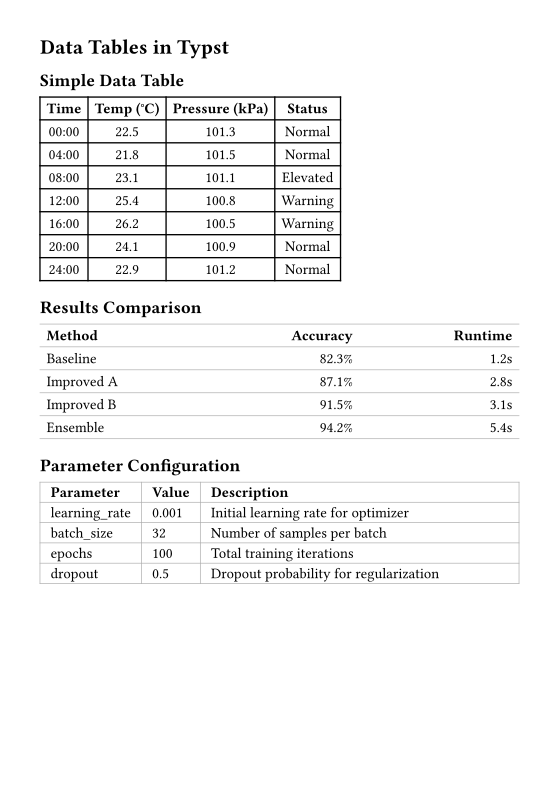
Loading CSV Data
#let measurements = csv("measurements.csv", delimiter: ",")

= Measurement Table

#table(
  columns: 3,
  align: (center, center, center),
  [*Time*], [*Temperature*], [*Pressure*],
  ..measurements.rows().map(row => (
    row.time,
    row.temperature,
    row.pressure,
  )),
)
Creating Tables from Data
#let participants = csv("participants.csv")

#table(
  columns: (auto, auto, 1fr, auto),
  align: (left, center, left, right),
  table.header(
    [*ID*], [*Group*], [*Name*], [*Score*],
  ),
  ..participants.map(p => (p.id, p.group, p.name, p.score)),
)
Built-in Plotting
Typst includes a charting library for basic visualizations. For more advanced scientific plotting, see CeTZ:
#import "@preview/cetz:0.2.0": chart

#chart(
  type: "bar",
  data: (
    ("Q1", 34),
    ("Q2", 52),
    ("Q3", 48),
    ("Q4", 61),
  ),
  width: 80%,
  height: 60%,
)
Advanced Plotting with CeTZ
For scientific plots, CeTZ-Plot provides advanced capabilities:
#import "@preview/cetz:0.4.2": canvas, draw
#import "@preview/cetz-plot:0.1.3": plot

#set page(width: auto, height: auto, margin: 0.5cm)

#canvas({
  import draw: *

  let f(x) = calc.sin(x) * calc.exp(-x/10)
  let g(x) = calc.cos(x) * calc.exp(-x/10)

  plot.plot(
    size: (12, 6),
    x-tick-step: 2,
    y-tick-step: 0.5,
  {
    plot.add(f, domain: (0, 10), style: (stroke: blue + 2pt), label: [Damped Sine])
    plot.add(g, domain: (0, 10), style: (stroke: red + 2pt), label: [Damped Cosine])
  })
})
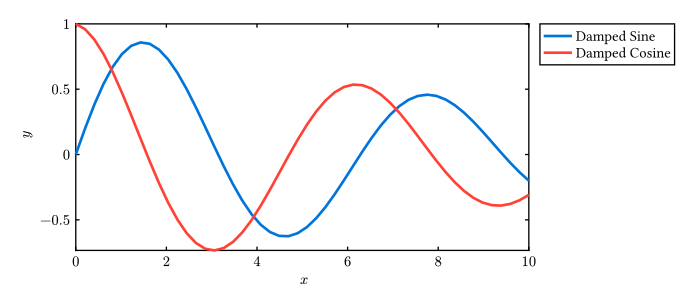
This eliminates the need to generate plots in Python/MATLAB and import them as images — everything stays synchronized with your document.
Accessibility Features: Better Than LaTeX
Accessibility in document preparation has traditionally been poor, especially in LaTeX. Typst takes a more modern approach.
Alt Text for Images
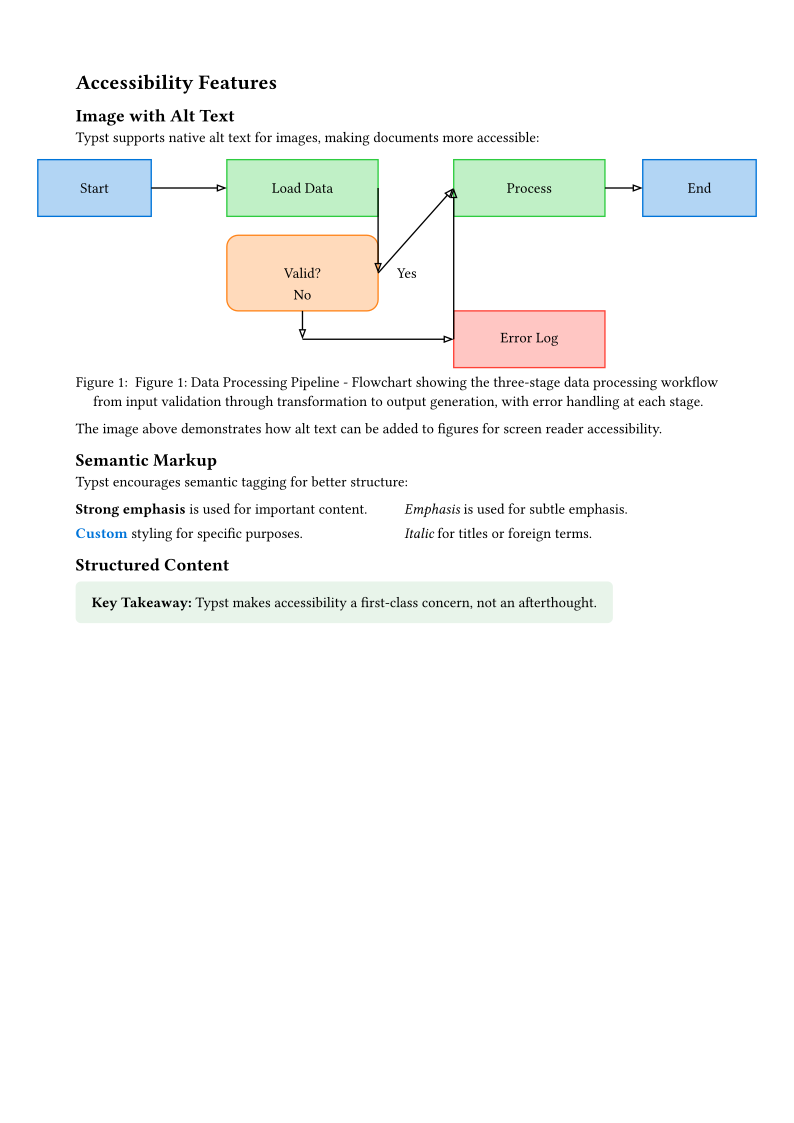
Adding alternative text is straightforward:
#figure(
  image("diagram.png", alt: "Flowchart showing the data processing pipeline from input through validation to output"),
  caption: "Data processing pipeline",
)
The alt parameter is fully supported in PDF export through proper tagging, making documents more accessible to screen readers.
Semantic Markup
Typst encourages semantic tagging:
#let important(body) = {
  set text(fill: red, weight: "bold")
  body
}

#let note(body) = {
  set text(style: "italic", size: 9pt)
  body
}

This is #important[critical information]. #note[Additional context available.]
This separates meaning from presentation, improving both accessibility and maintainability.
Comparison with LaTeX
LaTeX requires complex packages for accessibility (see tagpdf documentation):
\usepackage{tagpdf}
\tagpdfsetup{
  activate-all,
}
\FigureAltText{Alternative description here}
Typst makes this native and simple. No extra packages, no complex setup.
PDF Standards: PDF/A and PDF/UA
Typst supports exporting to various PDF standards for specific use cases. If you need to comply with accessibility regulations like the European Accessibility Act (EAA) or the Americans with Disabilities Act (ADA), Typst has you covered with built-in PDF/UA support.
PDF/UA-1 is the international standard for universally accessible PDFs. When enabled, Typst validates your document for accessibility issues such as missing document titles, incorrect heading hierarchies, and missing alternative descriptions. It will fail the export with descriptive error messages if critical issues are found. This helps ensure compliance with EAA (mandatory since June 2025) and ADA (deadline April 2026).
PDF/A standards are designed for long-term archival and document preservation. Typst supports all four parts of PDF/A with various conformance levels: PDF/A-1a and PDF/A-1b for PDF 1.4, PDF/A-2a and PDF/A-2b for PDF 1.7, PDF/A-3a and PDF/A-3b with file attachments, and PDF/A-4 with modern features. Choose PDF/A-2a unless you need to attach external files.
You can enable these standards using the --pdf-standard flag on the CLI, for example typst compile --pdf-standard ua-1 document.typ output.pdf, or select them in the export dropdown in the web app. Currently, you must choose between PDF/A and PDF/UA — dual conformance is not yet supported.
HTML Export: Current State and Limitations
Typst is not limited to PDF output — it can also export to HTML, making it suitable for web-based publishing. This feature is particularly useful when you want to embed documents in websites, create interactive documentation, or share content without requiring readers to download a PDF.
How to Export
Exporting to HTML is straightforward. You can use the command-line interface by running typst compile document.typ output.html, or you can specify the format programmatically within your document using #set page(format: "html"). The generated HTML is clean and semantic, designed to work well with web technologies.
What’s Supported
The HTML export handles most common document elements quite well. Text formatting including bold, italic, and other inline styles renders correctly. Mathematical equations are rendered using MathJax or KaTeX depending on configuration, providing high-quality math display in browsers. Images and figures are embedded or linked appropriately, and tables maintain their structure. Links and cross-references between document sections are preserved, making it easy to navigate long documents in the browser.
Current Limitations
That said, HTML export is not yet a complete replacement for PDF output. Custom fonts defined in your document may not be available in the web output — the export falls back to web-safe fonts, which can change the visual appearance significantly. Complex page layouts, especially those relying on absolute positioning or advanced typographic features, may not render as intended. When using external packages or libraries, you may need to handle dependencies differently since not all package features translate to HTML.
Practical Applications
Despite its limitations, HTML export is practical for several use cases. Technical documentation and wikis benefit from the ability to have live, searchable content directly in the browser. Blog posts and articles can be served as static HTML, potentially with dynamic updates when the source changes. Quick previews during document development let you see how content will look without generating a PDF each time. For teams that prefer web-based workflows, HTML output integrates naturally with modern publishing platforms.
Blog Website Generators
Beyond basic HTML export, the Typst community has developed dedicated static site generators that make it easy to create blogs and websites entirely in Typst.
Tola is a static site generator specifically designed for Typst-based websites. It leverages Typst’s markup and scripting capabilities to handle content while using Tailwind CSS for styling. You can create a blog with a single command tola init my-blog, write posts in Typst, and build them to static HTML. Tola provides features like automatic post listing, tag support, and RSS feeds. It uses a virtual package system that lets you access site-wide data like recent posts directly from your Typst files.
typsite is another static site generator that uses pure Typst for content creation. It provides a standard library for processing Typst files into complete static websites, with features like auto-sized inline elements for better SVG output and Typst Math to MathML conversion.
For those who prefer using Astro, tylant provides an Astro integration for Typst. This allows you to combine Typst’s powerful typesetting with Astro’s ecosystem. The setup includes features like tags, search, self-hosted fonts, link previews, and SEO optimization.
These generators handle the boilerplate of site structure, navigation, and styling, letting you focus on writing content in Typst while producing professional-looking websites.
Future Development
The Typst team is actively working on improving HTML export capabilities. You can follow progress on the official roadmap or check the Typst repository for the latest developments. As the feature matures, expect better font handling, more complete layout support, and tighter integration with web development workflows.
Presentations: Alternatives to Beamer
For presentations, Typst offers two main options: Polylux and Touying.
Polylux is a straightforward, Beamer-like library. See the Polylux documentation for full details.
Touying (meaning “projection” in Chinese) is a feature-rich presentation library with several advantages: heading-based slides let you write presentations like documents with minimal boilerplate; correct bookmarks and page numbers work out of the box; rich animations including #pause, #meanwhile, and math equation animations; built-in themes like Simple, Metropolis, Dewdrop, University, and Stargazer; speaker notes support with dual-screen capability; and export to PDF, PPTX, and HTML formats. Touying also has excellent integration with CeTZ and Fletcher for animated diagrams.
#import "@preview/touying:0.6.3": *
#import themes.simple: *

#show: simple-theme.with(aspect-ratio: "16-9")

= Title

== First Slide

Hello, Touying!

#pause

Hello, Typst!
Basic Slide Creation
#import "@preview/polylux:0.3.0": *

#set text(font: "Libertinus Serif", size: 20pt)

#title-slide[
  = Introduction to Machine Learning

  #v(2em)

  Author: Jane Researcher
  Institution: University of Data Science
]

#slide[
  = What is Machine Learning?

  Machine learning is a subset of artificial intelligence that enables systems to learn from data.

  Key concepts:
  - Supervised learning
  - Unsupervised learning
  - Reinforcement learning
]

#slide[
  = Supervised Learning

  #figure(
    image("supervised-diagram.png", width: 80%),
    caption: "Supervised learning workflow",
  )
]
Animations and Overlays
#slide[
  = Key Findings

  Our research revealed #uncover(1)[three major discoveries:]

  #uncover(2)[
    + Performance improved by 34%
    + Training time reduced by half
    + Model accuracy: 94.7%
  ]

  #uncover(3)[
    These results exceed baseline expectations.
  ]
]
Comparison with Beamer
Beamer example for comparison:
\documentclass{beamer}
\usetheme{Madrid}

\begin{frame}{Introduction}
\begin{itemize}
\item<1-> First point
\item<2-> Second point
\item<3-> Third point
\end{itemize}
\end{frame}
Typst Polylux equivalent is more readable and compiles faster.
Graphical Libraries: Alternatives to TikZ
Typst’s CeTZ (CeTZ Library) provides powerful drawing capabilities as an alternative to TikZ. The CeTZ documentation covers all available drawing primitives.
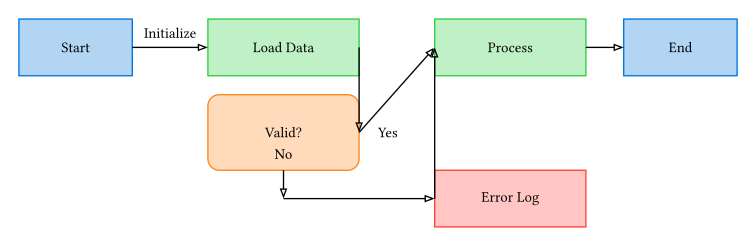
Basic Shapes and Diagrams
#import "@preview/cetz:0.4.2"

#cetz.canvas({
  import cetz.draw: *

  rect((0, 4), (3, 5.5), fill: blue.lighten(70%), stroke: blue)
  content((1.5, 4.75), [Start], anchor: "center")

  rect((5, 4), (9, 5.5), fill: green.lighten(70%), stroke: green)
  content((7, 4.75), [Load Data], anchor: "center")

  line((3, 4.75), (5, 4.75), mark: (end: ">"), stroke: black + 1pt)
})
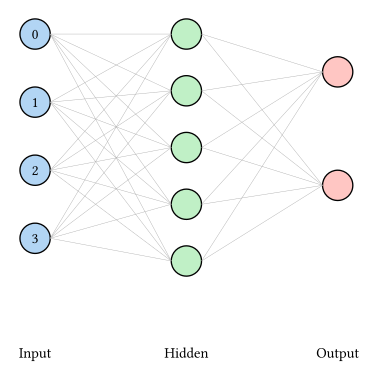
Advanced Diagrams
#import "@preview/cetz:0.4.2"

#cetz.canvas({
  import cetz.draw: *

  let input-y = (8, 6.2, 4.4, 2.6)
  let hidden-y = (8, 6.5, 5, 3.5, 2)
  let output-y = (7, 4)

  for i in range(4) {
    circle((0, input-y.at(i)), radius: 0.4,
           fill: blue.lighten(70%), stroke: black)
  }

  for i in range(5) {
    circle((4, hidden-y.at(i)), radius: 0.4,
           fill: green.lighten(70%), stroke: black)
  }

  for i in range(2) {
    circle((8, output-y.at(i)), radius: 0.4,
           fill: red.lighten(70%), stroke: black)
  }

  content((0, -0.3), [Input], anchor: "north")
  content((4, -0.3), [Hidden], anchor: "north")
  content((8, -0.3), [Output], anchor: "north")
})
Importing External Graphics
While CeTZ is excellent for programmatic graphics, you can also import existing images:
#figure(
  image("diagram.svg", width: 80%),
  caption: "System architecture",
)
<fig:architecture>

See @fig:architecture for the complete system design.
Typst supports SVG, PNG, JPEG, and GIF formats. SVG integration is particularly smooth since it shares Typst’s vector graphics foundation.
Comparison with TikZ
TikZ (LaTeX):
\begin{tikzpicture}
  \draw[->] (0,0) -- (2,0) node[right] {$x$};
  \draw[->] (0,0) -- (0,2) node[above] {$y$};

  \draw[blue, thick] (0,0) .. controls (1,1) and (2,1) .. (3,0);

  \node[draw, fill=yellow] at (1.5,0.5) {Node};
\end{tikzpicture}
CeTZ (Typst):
#import "@preview/cetz:0.4.2"

#cetz.canvas({
  import cetz.draw: *

  // Axes
  line((0,0), (2,0), mark: (end: ">"), stroke: black)
  content((2,0), "x", anchor: "west")
  line((0,0), (0,2), mark: (end: ">"), stroke: black)
  content((0,2), "y", anchor: "south")

  // Bezier curve
  bezier((0,0), (3,0), (1,1), (2,1), stroke: blue + thick)

  // Node
  rect((1,0.5), (2,1), fill: yellow)
  content((1.5,0.75), [Node])
})
Key advantages of CeTZ:
- More intuitive coordinate system
- Better integration with document
- Faster prototyping
- Cleaner error messages
- Easier animation support
#figure(
  image("diagram.svg", width: 80%),
  caption: "System architecture",
)
<fig:architecture>

See @fig:architecture for the complete system design.
Typst supports SVG, PNG, JPEG, and GIF formats. SVG integration is particularly smooth since it shares Typst’s vector graphics foundation.
Conclusion: Should You Switch?
When Typst Excels
Typst is ideal for:
- New projects: No legacy LaTeX code to maintain
- Collaborative writing: Modern version control practices work better
- Frequent recompilation: The speed difference is dramatic
- Complex automation: Built-in scripting is more powerful than LaTeX macros
- Learning curve avoidance: Easier for newcomers
- Modern workflows: CI/CD integration, package management
When LaTeX Still Wins
LaTeX remains better for:
- Specialized fields: Some disciplines have entrenched LaTeX tools
- Extensive templates: Journals/conferences requiring specific LaTeX classes
- Mature ecosystem: Decades of templates, packages, and community knowledge
- Bibliography databases: Large BibTeX collections organized around LaTeX
Getting Started
Install Typst from the official website or via package managers:
# Using cargo
cargo install typst

# Using Homebrew (macOS)
brew install typst

# Using AUR (Arch Linux)
yay -S typst
Try the official tutorial at typst.app/docs — you’ll be productive within hours, not weeks.
The Future of Document Preparation
Typst represents a paradigm shift: treating document preparation as a modern software engineering problem. While LaTeX will remain relevant for years, Typst demonstrates what’s possible when we apply contemporary design principles to typesetting.
For researchers, students, and technical writers starting fresh projects, Typst offers a compelling alternative that might just make you wonder why you tolerated LaTeX’s quirks for so long.
Additional Resources
- Official Website: typst.app
- Documentation: typst.app/docs
- Template Repository: typst.app/universe
- GitHub Repository: github.com/typst/typst
- Community Forum: typst.app/community
- Polylux (Presentations): polylux.dev and typst.app/universe/package/polylux
- CeTZ (Graphics): typst.app/universe/package/cetz
- CeTZ-Plot (Scientific Plots): typst.app/universe/package/cetz-plot
- Modern Thesis Template: typst.app/universe/package/modern-thesis
- IEEE Template: typst.app/universe/package/ieee
- Letter Template: typst.app/universe/package/letter

Filippo Berto Ph.D.
Software Engineer
My interests include massively distributed applications, edge-cloud infrastructures, cybersecurity and certification techniques.